The easiest way to learn Recordo is to use it the same way ADHD thoughts show up: quickly, messily, and in the moment. Start by typing or saying what is in your head in plain language, then let Recordo hold onto it for you.
This page walks through the main parts of the experience, where to find them, and how they work together when you need fast capture, less overwhelm, and support that feels ADHD-friendly instead of rigid.
1. Capture instantly, let Recordo sort it out
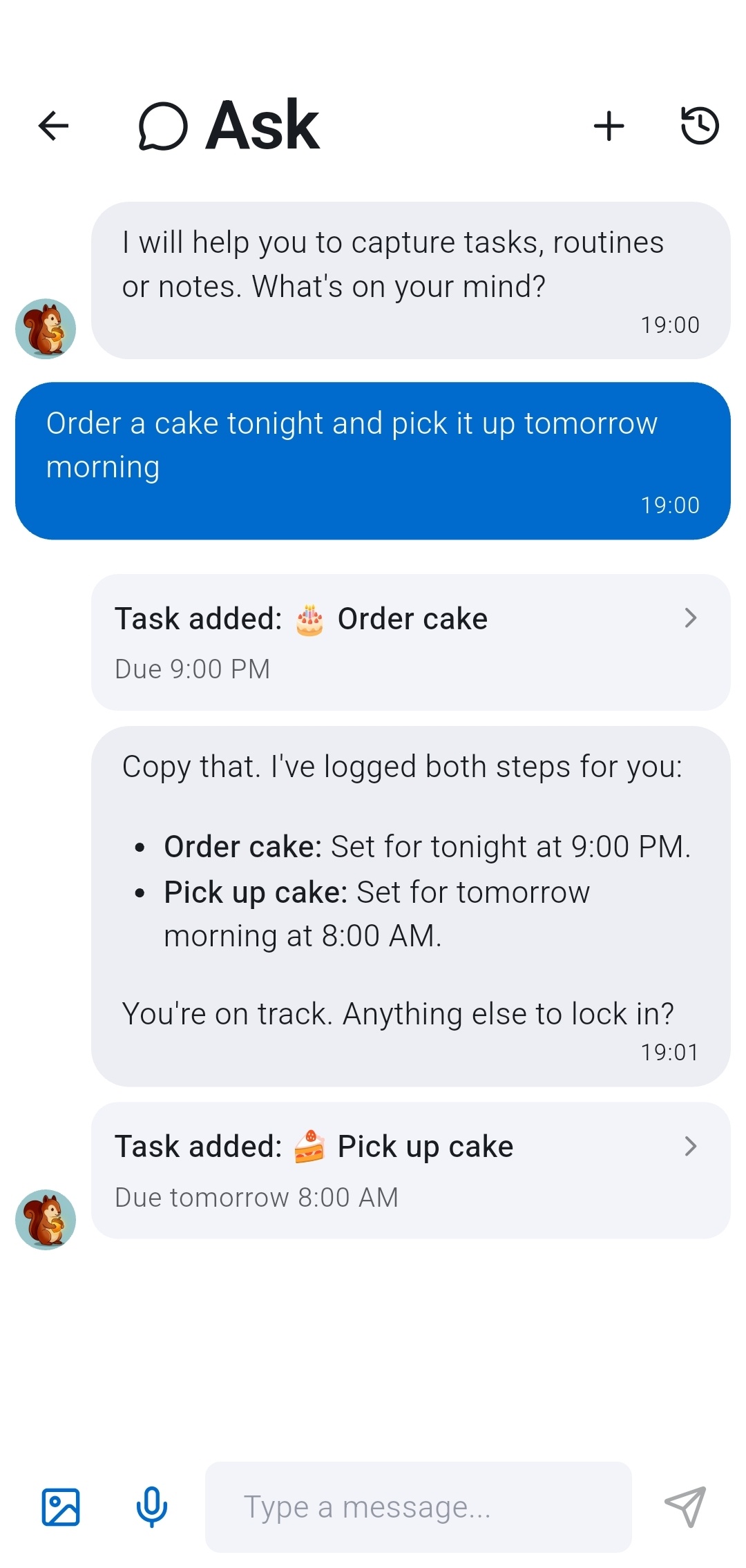
Use the central Quick add button or open Coach and send a message like you would text another person. Recordo can turn one messy message into multiple tasks, reminders, or notes without asking you to stop and organize first.
That is the core promise: get the thought out fast, and let Recordo do the sorting work after the capture instead of before it.
Something already on your screen? Share text or a screenshot from another app to Recordo, and Quick add opens with it filled in. Sharing images and screenshots needs Pro.
2. Save both tasks and notes
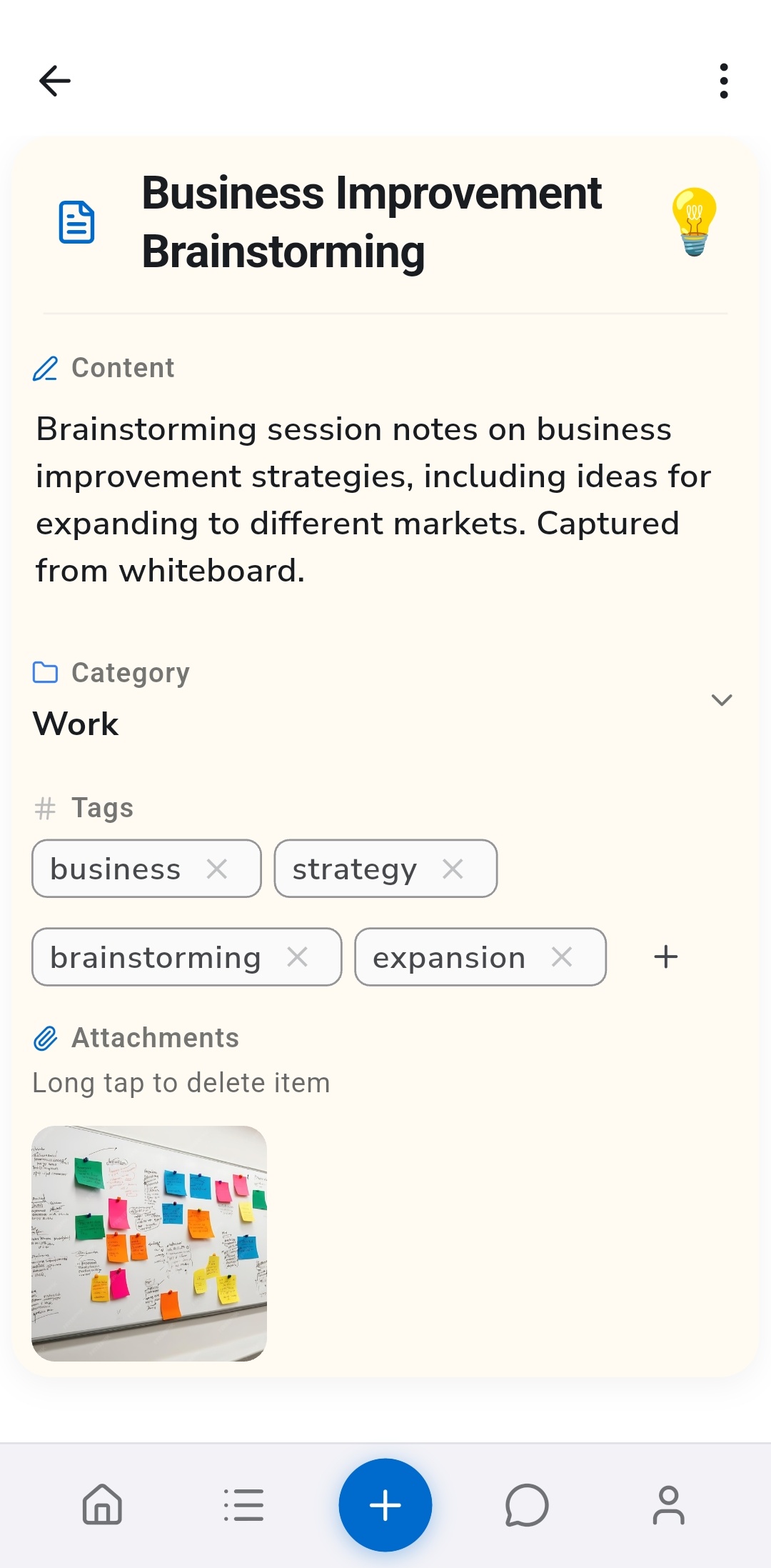
Recordo is not just a to-do list. Some thoughts need action. Others just need to be held somewhere safe until you need them again.
- Task examples: call the dentist tomorrow, pay the electricity bill, take vitamins every morning.
- Note examples: a gift idea, a meeting detail, an address, a quote, or a half-formed idea you are not ready to act on yet.
If you are unsure, capture it anyway. You can change it later from the detail view, and Coach can help you find it again even if you do not remember the title.
3. Review everything in Entries
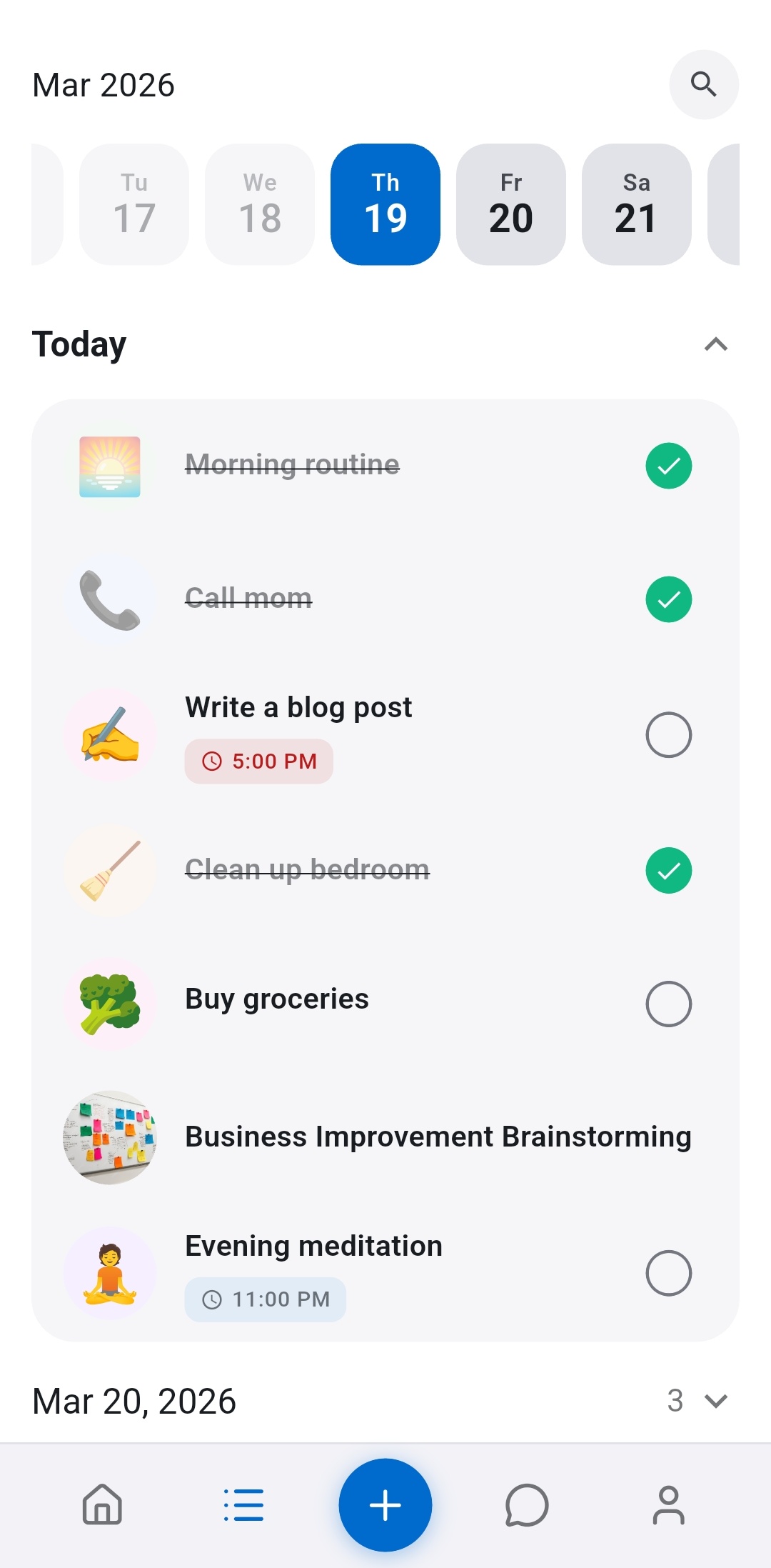
Entries is the full record of what you captured. This is where Recordo starts to feel less like a chat and more like a dependable system.
- Open tasks and notes to edit details, titles, and content.
- Change due dates, reminders, recurrence, or status when plans move.
- Search older items instead of scrolling through everything manually.
- Use it as the source of truth when you want to review the whole picture, not just the next step.
- Choose when a task reminds you: at the due time, minutes or hours before, or not at all. Set your usual lead time once as the Default task reminder in Profile. How reminders work
- Drag a task to reorder your day or drop it on another day to reschedule it. Long-press to select several tasks, then move them to a project or a new date, or delete them in one go.
Entries is also where you see mixed reality: quick thoughts, serious commitments, and recurring routines living in one timeline instead of being split across several tools.
4. Group related work into projects
Some tasks belong together: finding a job, planning a move, collecting trip ideas. A project keeps those tasks and notes in one place, so a bigger goal stops being scattered across your whole list.
- To put a task or note in a project, open it and tap Project, or tap Project while adding it by hand. Your projects list opens, and you pick where it belongs. To move several tasks at once, long-press to select them and choose Move to project.
- To create a project, tap New project at the end of that list. Give it a name and one of ten colors, and optionally describe the goal or topic it is for.
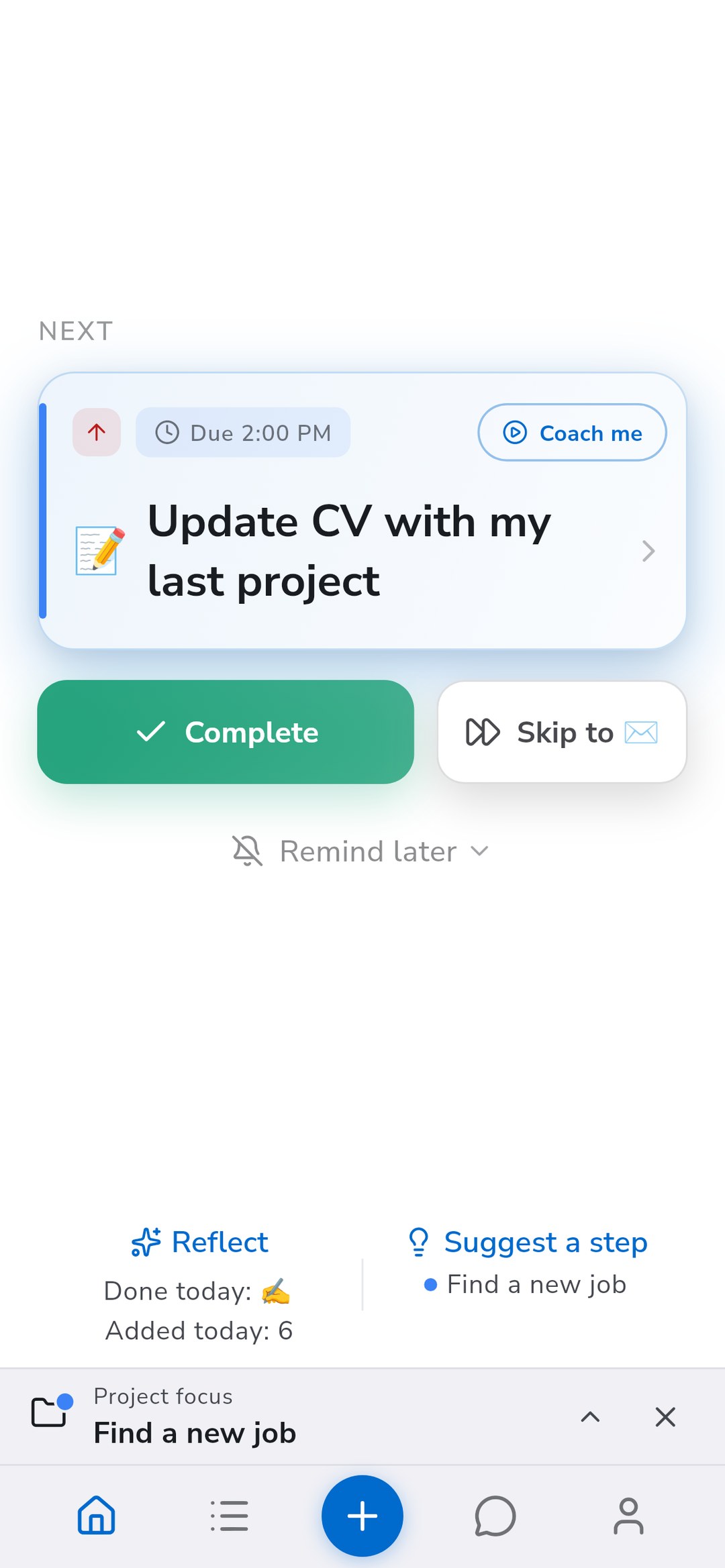
- Use Filters in Entries to show one project, or everything without a project, in both the list and the calendar. Project colors also mark entries, calendar blocks, and the next task card on Home.
- Tap Focus on a project on Home when one area needs your attention. Home picks the next task from that project, Entries shows only its work, and new tasks you add by hand or through Coach go into it until you end the focus.
Projects are free, with no limit on how many you create. You can also ask Coach what is left in a project, or tell it to add a task to one by name.
5. Let Home narrow your focus
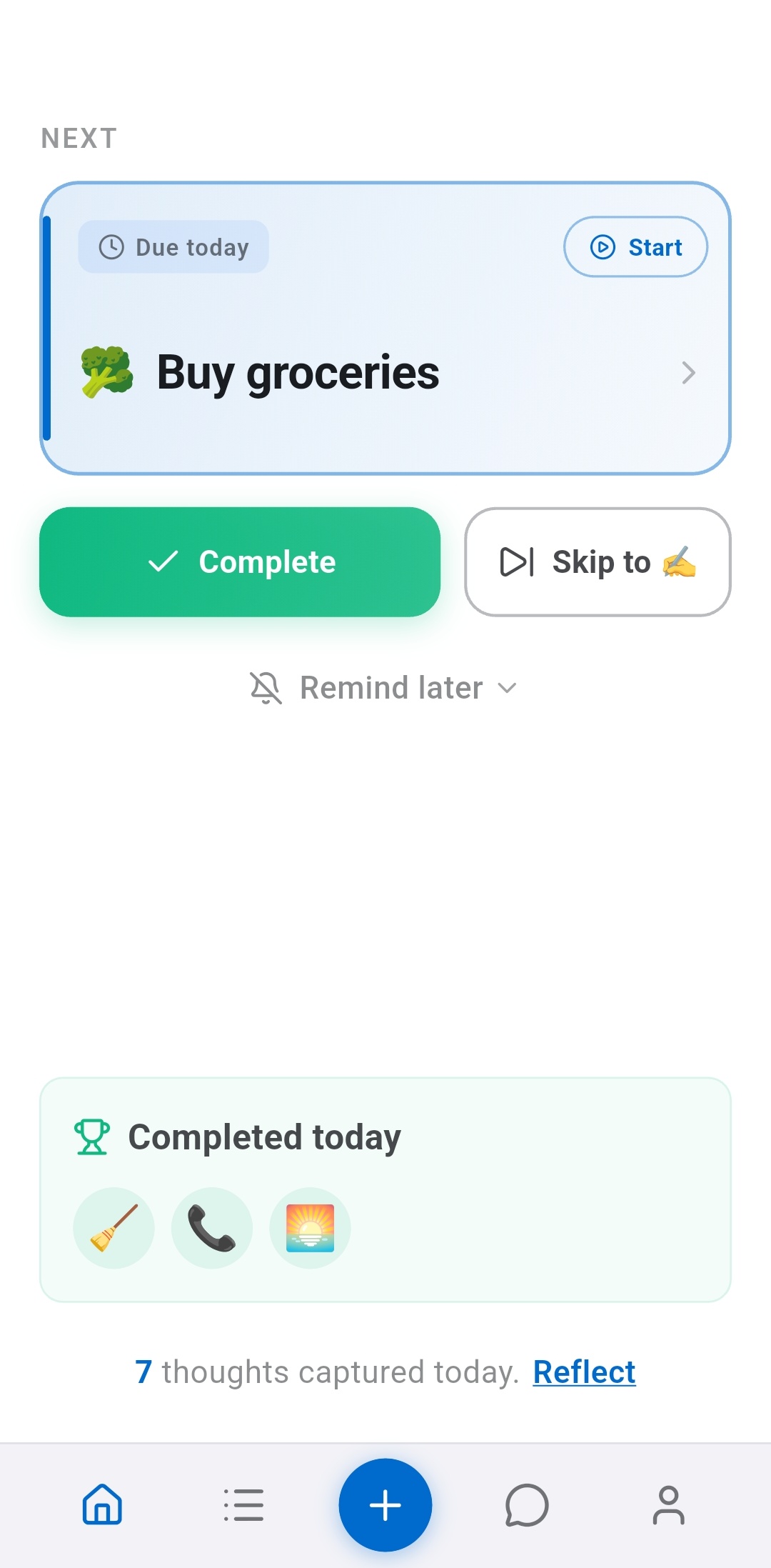
Overwhelm is one of the main ADHD problems Recordo tries to solve. Home does not throw your entire life at you. It surfaces what matters now, including your next task and progress for the day.
- Use Home when you want one clear next move instead of your whole backlog.
- Use Entries when you want the full system view and need to edit or search.
- Use Coach when you want to ask naturally: What should I focus on today? What did I save about taxes? Move laundry to tomorrow.
These three surfaces complement each other: Home narrows, Entries reviews, and Coach interprets. See how Recordo picks your next task
6. Keep Recordo one tap away with widgets
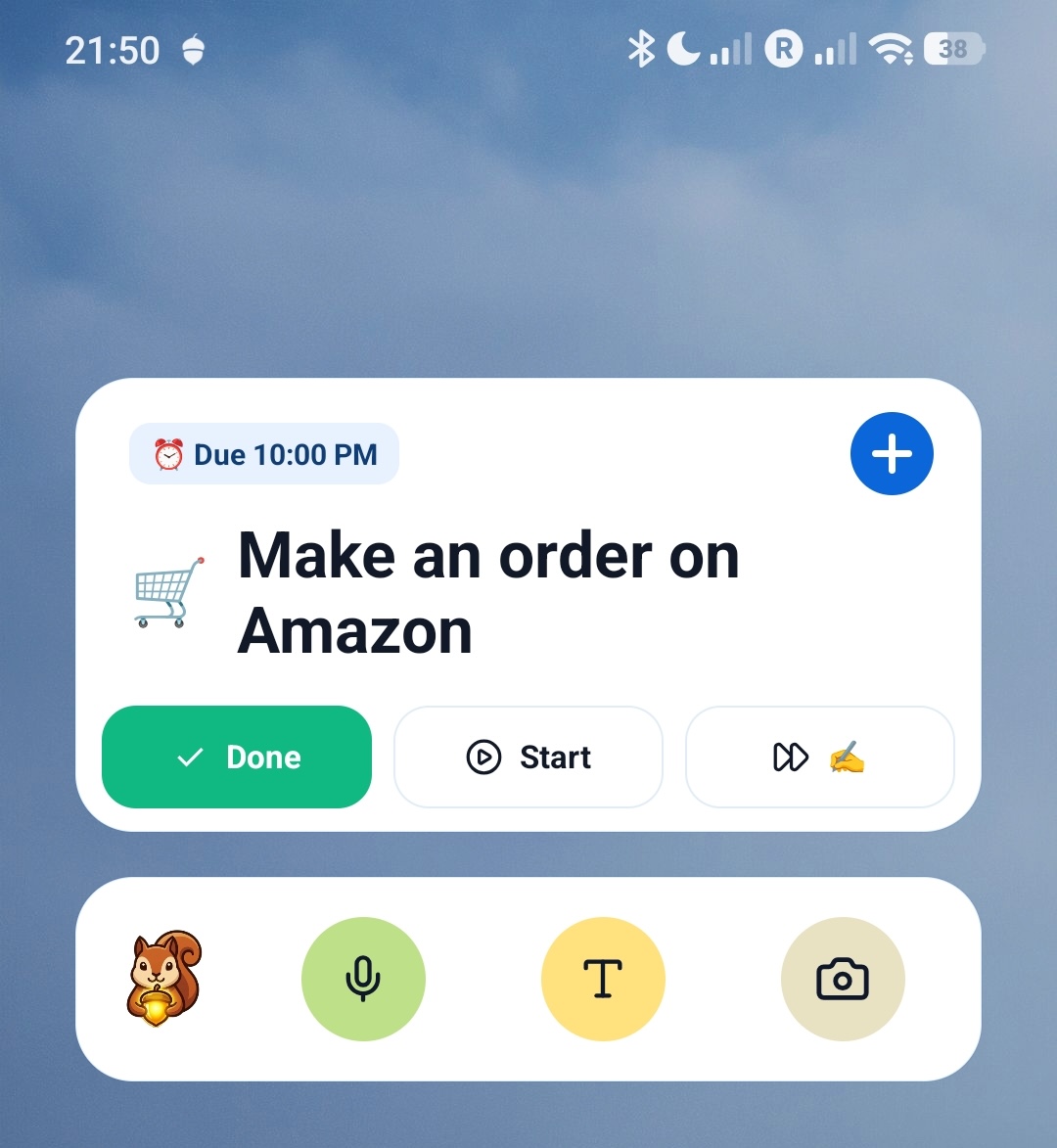
If Recordo helps because it is fast, widgets matter. They reduce the distance between a thought and a saved task, and they keep your next action visible before you even open the app.
- Use a quick capture widget when you want the fastest possible way to get something out of your head.
- Use a next-task widget when you want your current priority visible from the launcher.
- Use a Today's Tasks widget to see today's list and check tasks off with one tap.
You can add widgets from Profile, where Recordo shows the available widget options and previews before you pin them.
7. Open Momentum Mode with Start
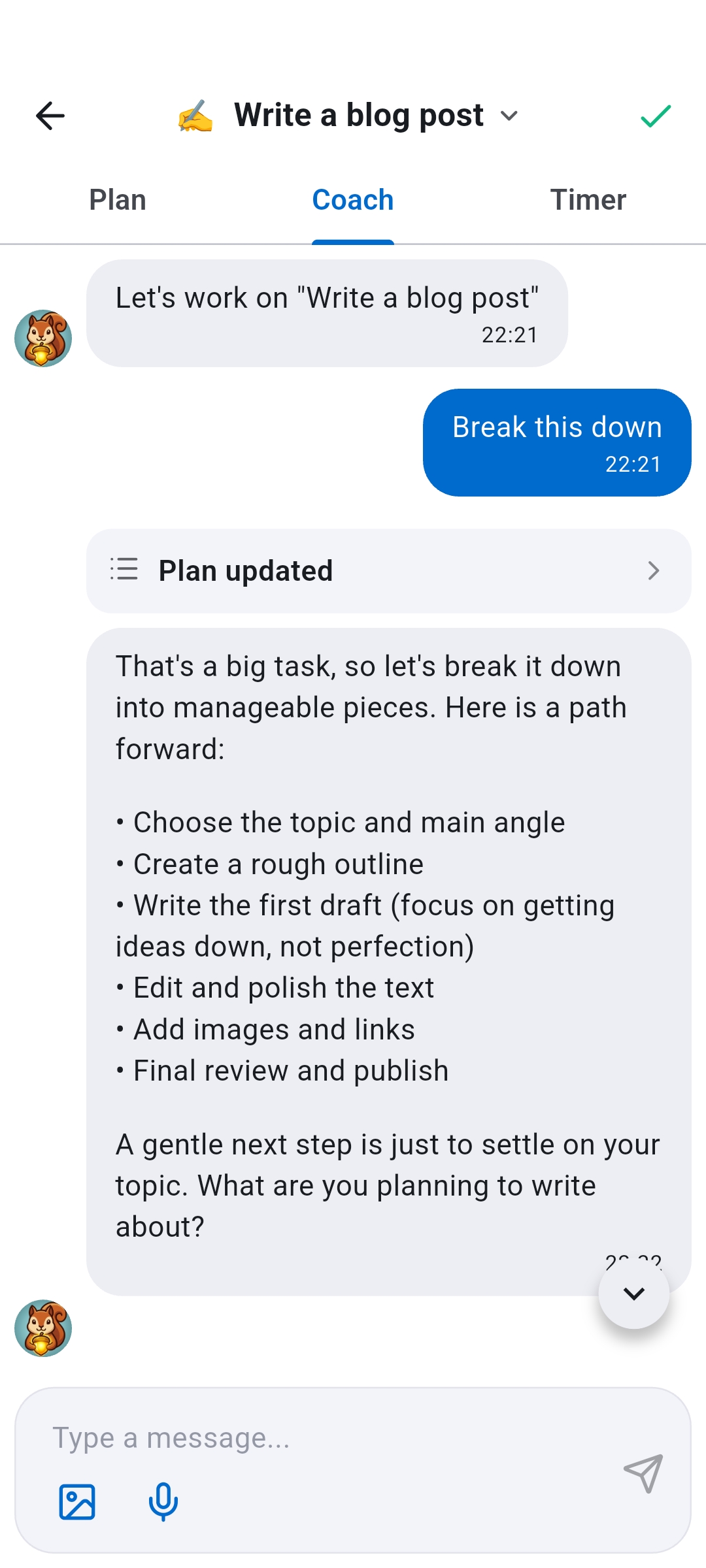
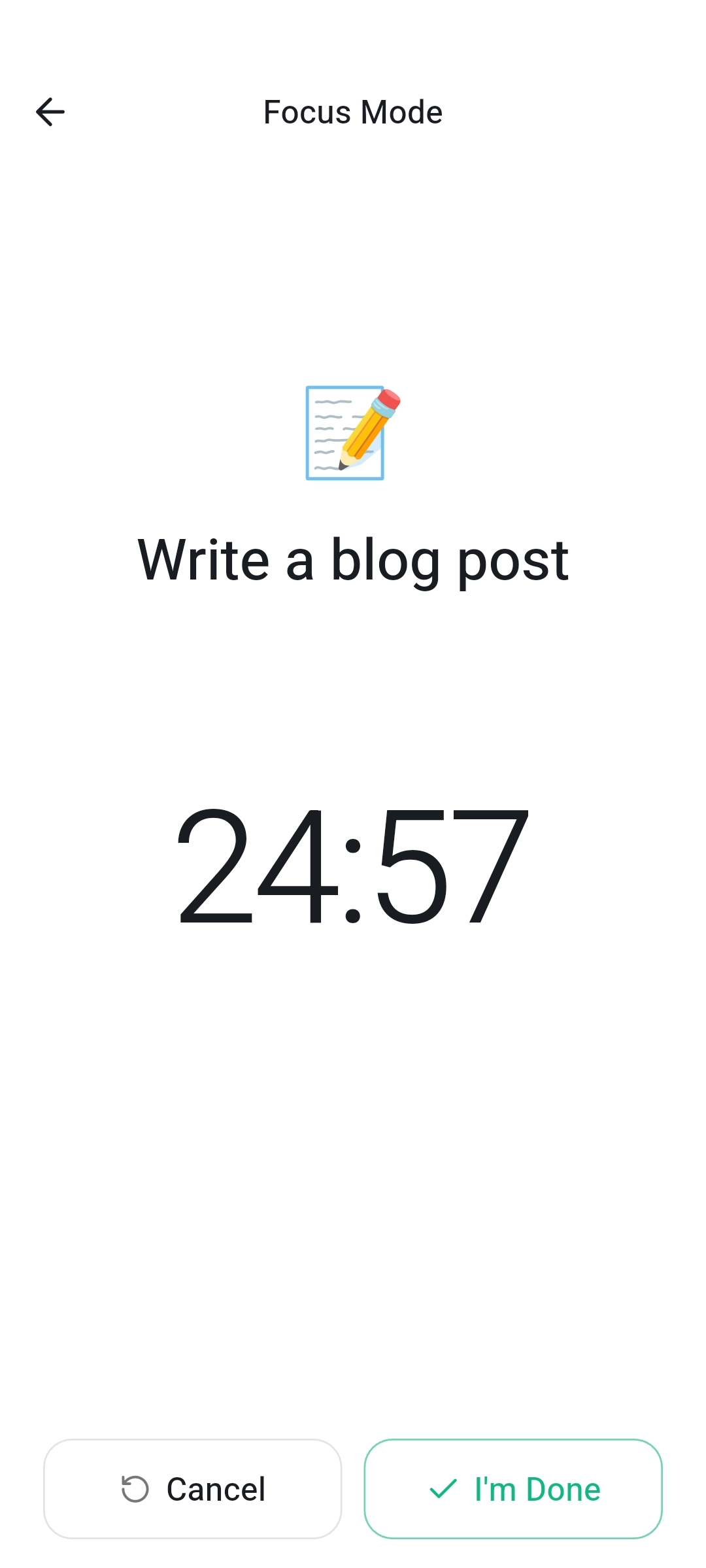
Momentum Mode is for the moment when you know the task but still cannot begin. Instead of leaving you alone with a heavy task, it gives you Plan, Coach, and Timer in one place.
- Find a task on Home, Entries, or the task detail screen.
- Tap Start.
- Use Coach if you need help beginning, Plan if you want a checklist, or Timer when you are ready to work in a focused session.
Momentum works best for vague, heavy, or avoidance-prone tasks where the real problem is starting. The timer matters here because short, visible focus sessions are often what turns intention into motion and makes distraction easier to recover from. See how the focus timer helps you start
8. Make Coach fit how you work
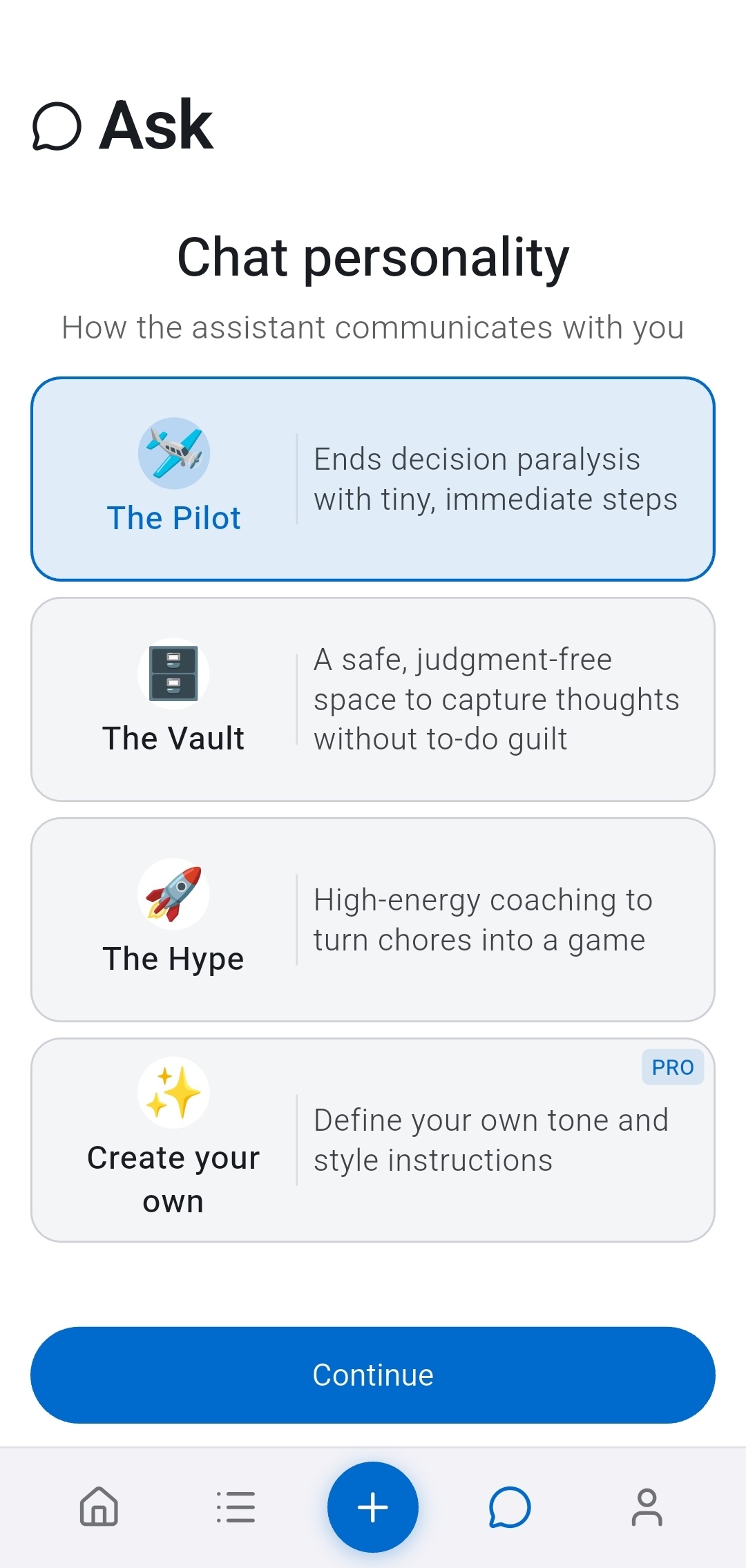
Recordo includes built-in personalities so the same app can support different ADHD states instead of forcing one tone all the time.
- The Pilot: calm, direct, and grounding when you need a clear next step.
- The Buddy: warm, empathetic, and judgment-free when you are stressed or discouraged.
- The Hype: high-energy and game-like when you want momentum and activation.
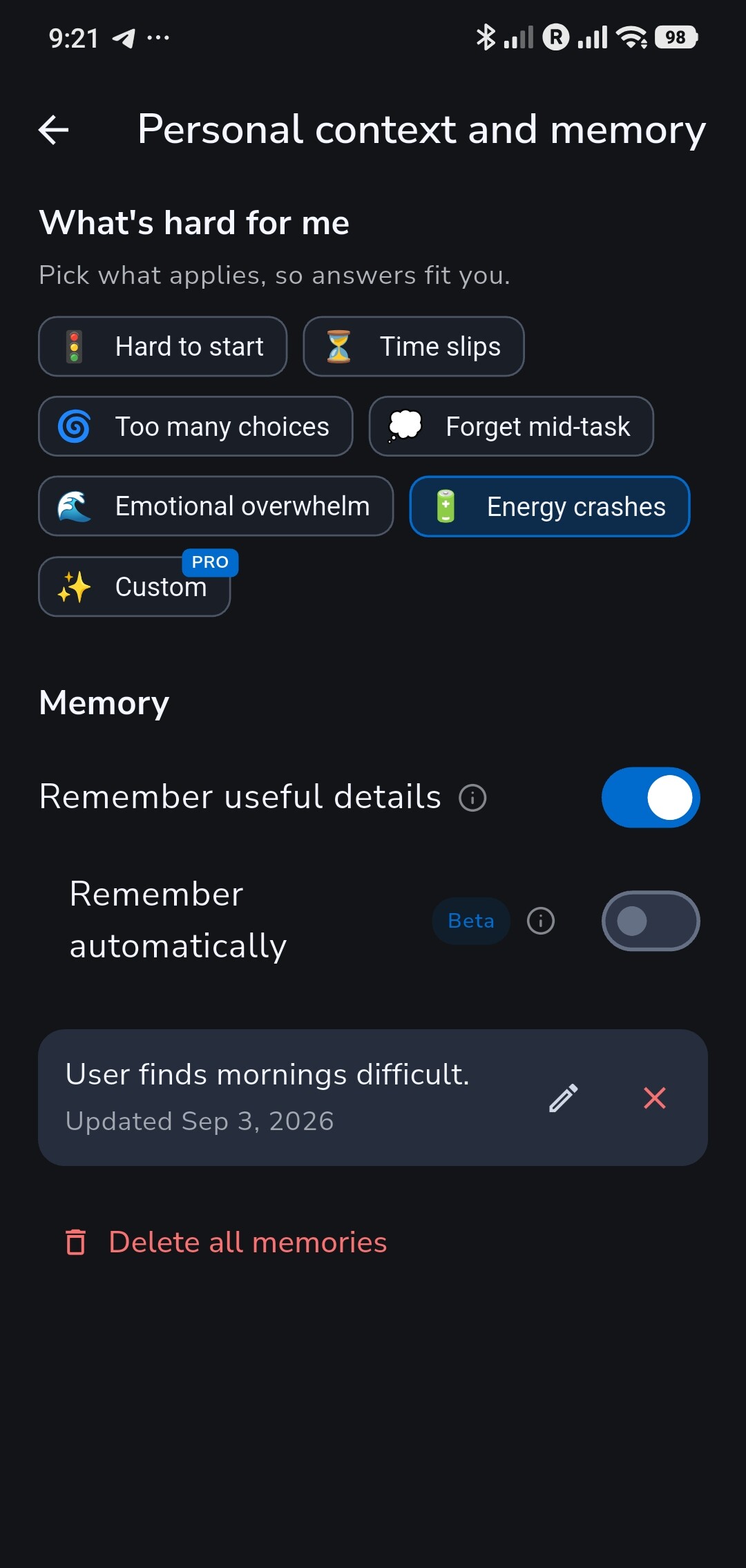
You can also tell Recordo what is hard for you under What's hard for me, such as Hard to start, Time slips, Too many choices, or Energy crashes, so the coach adapts more closely to how you work.
Coach can also remember useful details. Turn on Remember useful details under Personal context and memory, then ask it to remember something, like the fact that mornings are hard for you. Later chats use it, and every memory stays visible for you to edit or delete. Remember automatically is an optional beta that notices useful details without being asked.
9. Plan your day and week in Calendar view
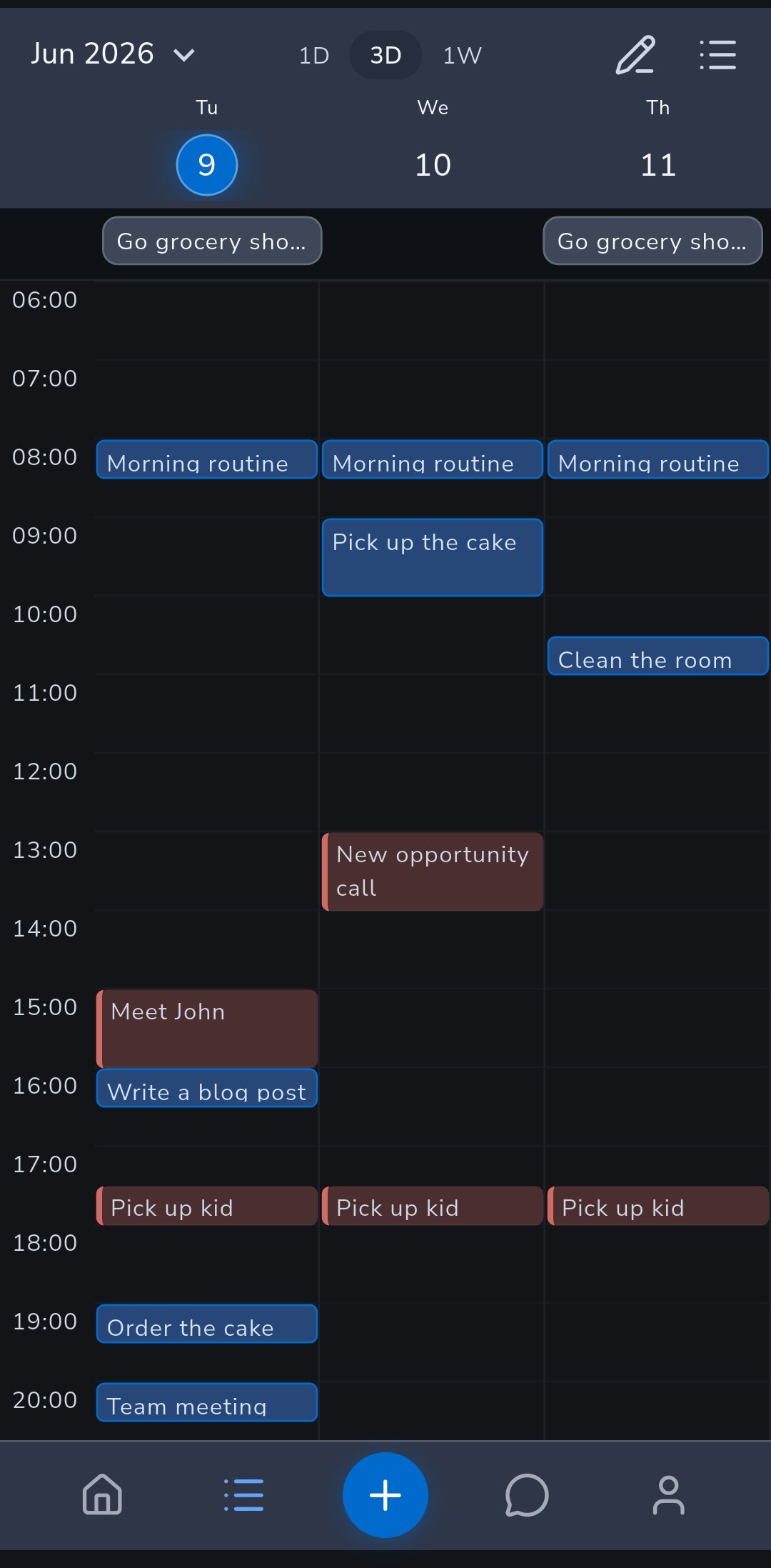
Not everything works as a plain list. Switch Entries to Calendar and choose Day, 3 days, or Week to see tasks on a time grid and place them into real time.
- Long-press a task and drag it to a new time or day. Tasks without a time wait in the No time row, so they stay visible instead of disappearing.
- Use it to spot overloaded days before they become missed commitments.
- Set a Sleep window under Sleep in Profile, and the calendar marks those hours. Timed tasks that overlap them are flagged, and Coach asks before scheduling anything there. The sleep window is free.
With Pro, you can also connect Apple Health or Health Connect. After a noticeably shorter night than usual, Home can offer Make today lighter, which opens Coach to review the day with you.
With Pro, open Calendar Integration in Profile to bring in Google Calendar events, so you plan against your real schedule, or subscribe to a private feed that shows your Recordo tasks in Apple Calendar, Google Calendar, or Outlook.
10. Let automations catch up your list
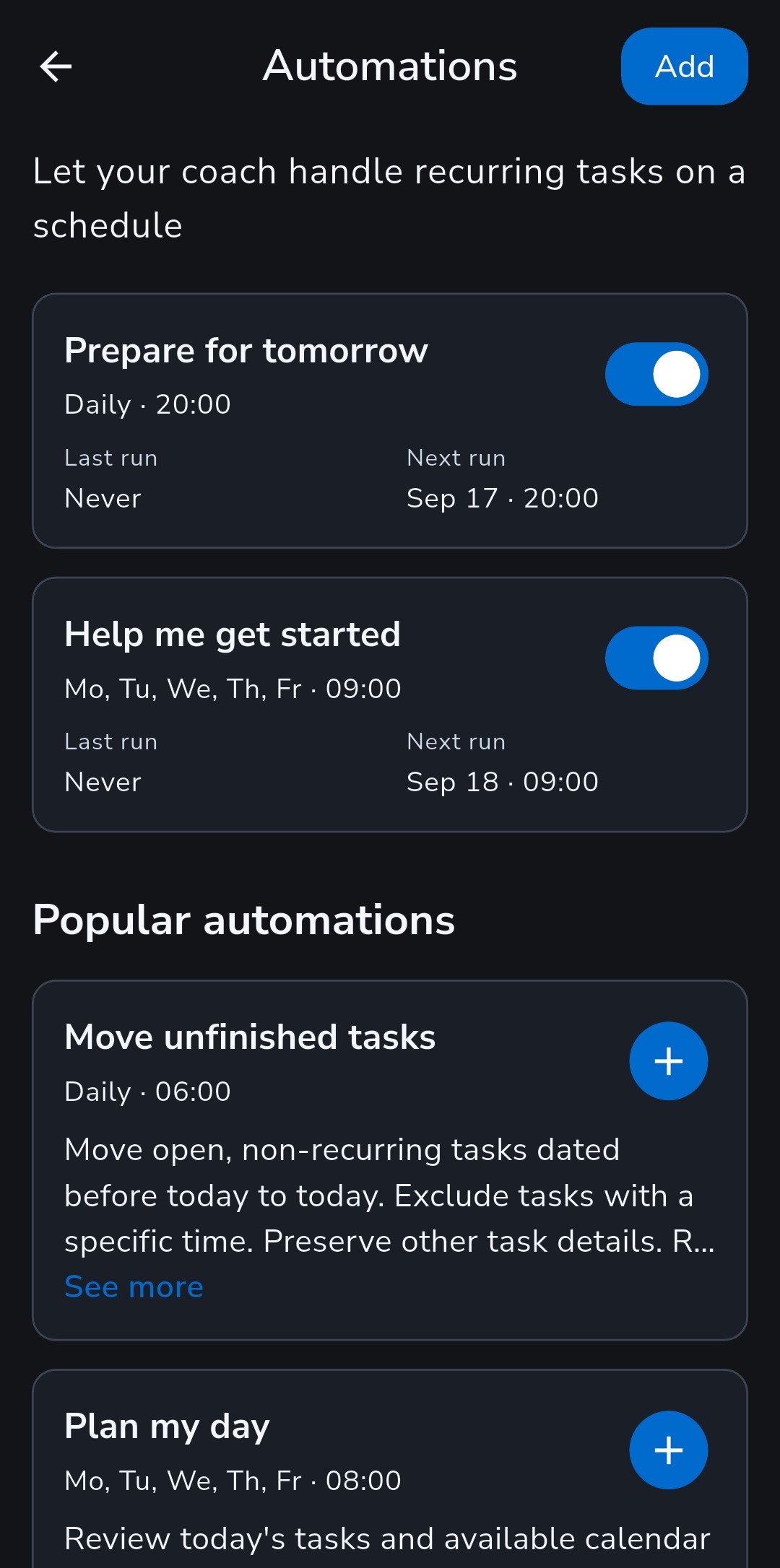
An ADHD list rots quietly: yesterday's unfinished tasks sit on old dates until the whole thing feels too stale to open. Automations are instructions Coach carries out on a schedule, even when the app is closed.
Start with Move unfinished tasks. Every morning at 6:00 by default, it moves open tasks from earlier days to today, leaves tasks with a set time and recurring tasks where they are, and tells you what moved.
- Plan my day: on weekdays at 8:00, a realistic plan for today with breaks and one easy first step. It does not change your tasks.
- Help me get started: on weekdays at 9:00, one manageable task for today and a concrete first step.
- Your own instruction: describe what you want in plain words, then choose a time, the days, and whether to get a notification.
Each run becomes a conversation you can open and reply to. The free plan includes one active automation, so you can keep Move unfinished tasks on at no cost. Pro removes the limit. See exactly what moves each morning
11. Use Recordo where you already are
Recordo is meant to be available wherever your thoughts show up. One account works on your phone, on your computer, and inside the chat tools you already use.
- Mobile app: the fastest place for capture, reminders, widgets, Home, and Momentum Mode.
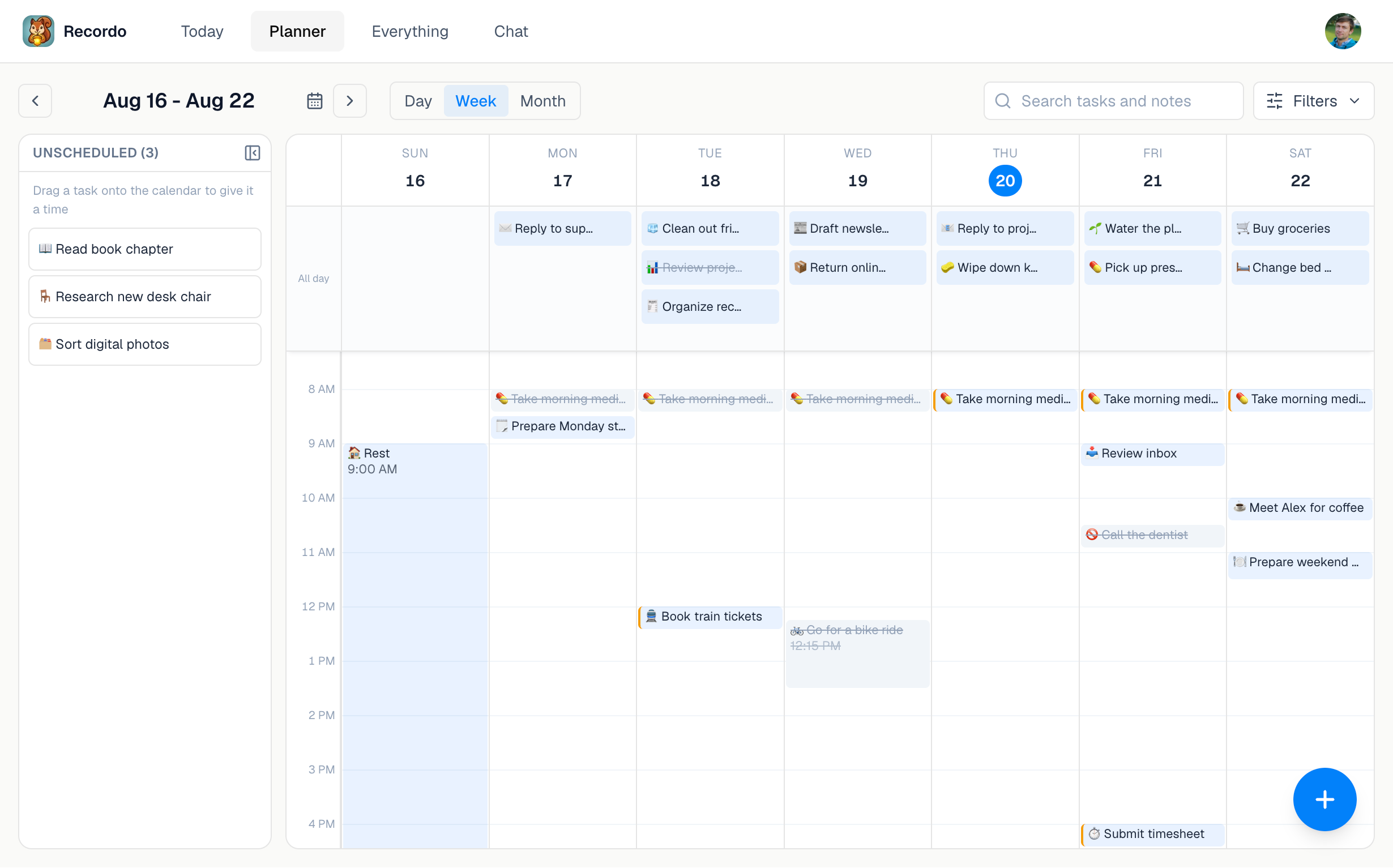
- Web app: sign in at console.recordo.app with the same account to use Today, Planner, Everything, and Chat on a bigger screen, including a week Planner where you drag tasks into time.
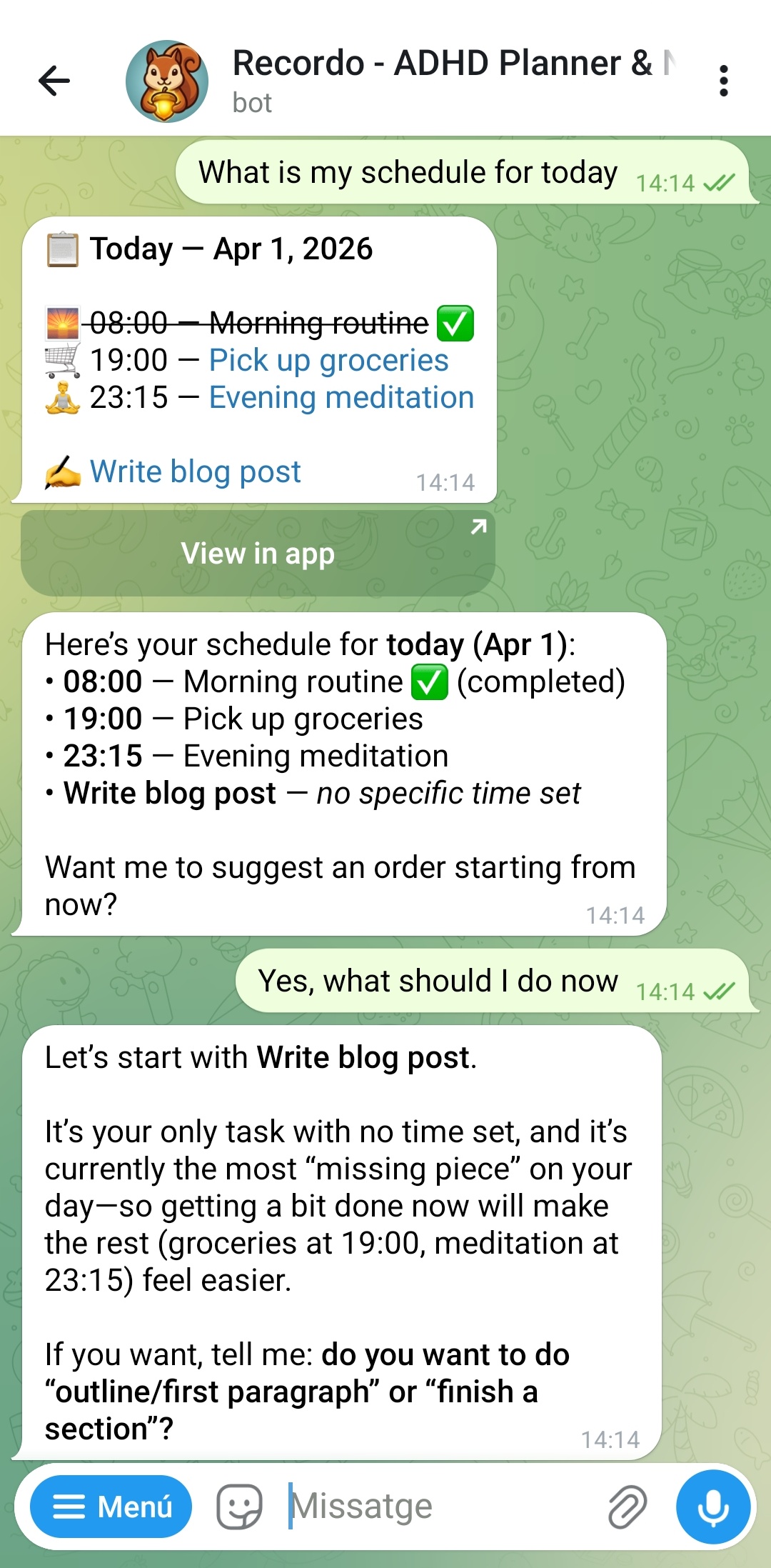
- Telegram: connect from Profile and send tasks, notes, and brain dumps directly in Telegram by text, voice, or photo.
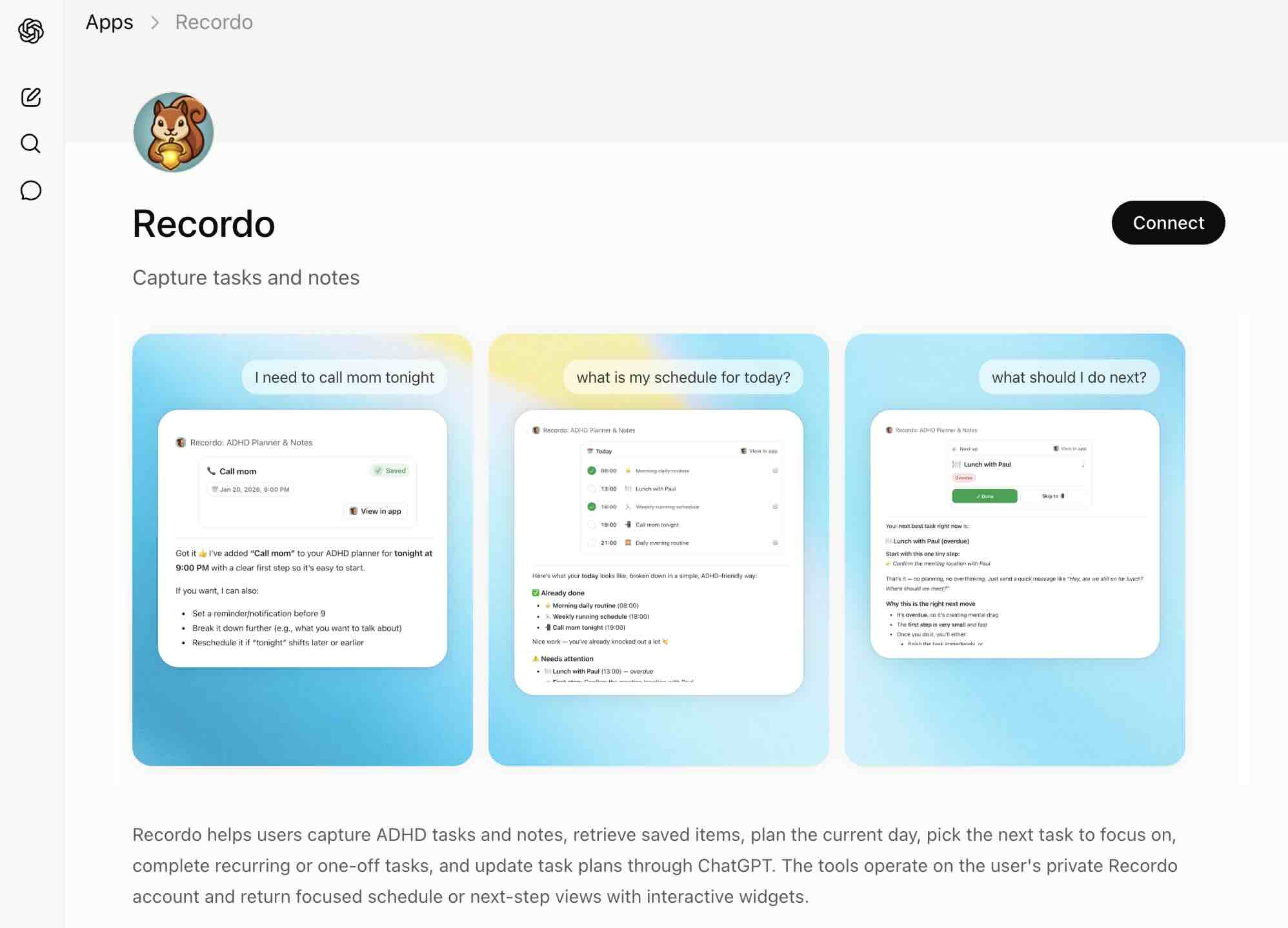
- ChatGPT app: Use Recordo tools and cards inside ChatGPT to add tasks, save notes, and check your schedule.
- MCP guide: Connect Recordo's MCP server if you want your AI assistant to read and update your Recordo account without switching apps.
This is especially useful if your day already happens at a desk, inside Telegram, or in an AI client and you want Recordo available there too.
12. Start fast, but onboard yourself immediately
If you are starting from an empty app, do not stop at the first brain dump. Use that first session to set up the minimum system you need right away.
- Capture a few real tasks and a few real notes so the app reflects actual life, not a demo version of your life.
- Add due dates to anything time-sensitive and leave the rest flexible.
- Create one recurring routine you know you will see tomorrow or this week.
- Choose a coach personality so Coach and Momentum already sound right when you need them.
- Add Move unfinished tasks from Automations so tomorrow starts from a current list.
- If one area of life has a lot going on, create a project for it and move its tasks in.
- If you already use Todoist, open Profile and choose Import from Todoist to bring in your open tasks instead of rebuilding from scratch.
The Todoist import is a migration path, not a sync layer. Recordo imports open tasks; it does not change or delete anything in Todoist.
Ready to try it?
Start with one real thought, one real task, and one real note. The app gets useful the moment it starts carrying the mental load you were carrying alone.